Elevate your macOS screenshotand recording workflow
WispShot lives in your MacBook notch. Screenshot, record, annotate, extract text, and pin captures to your desktop — all without leaving what you were doing.
return x;
Area Selection

Capture. Stage. Act.
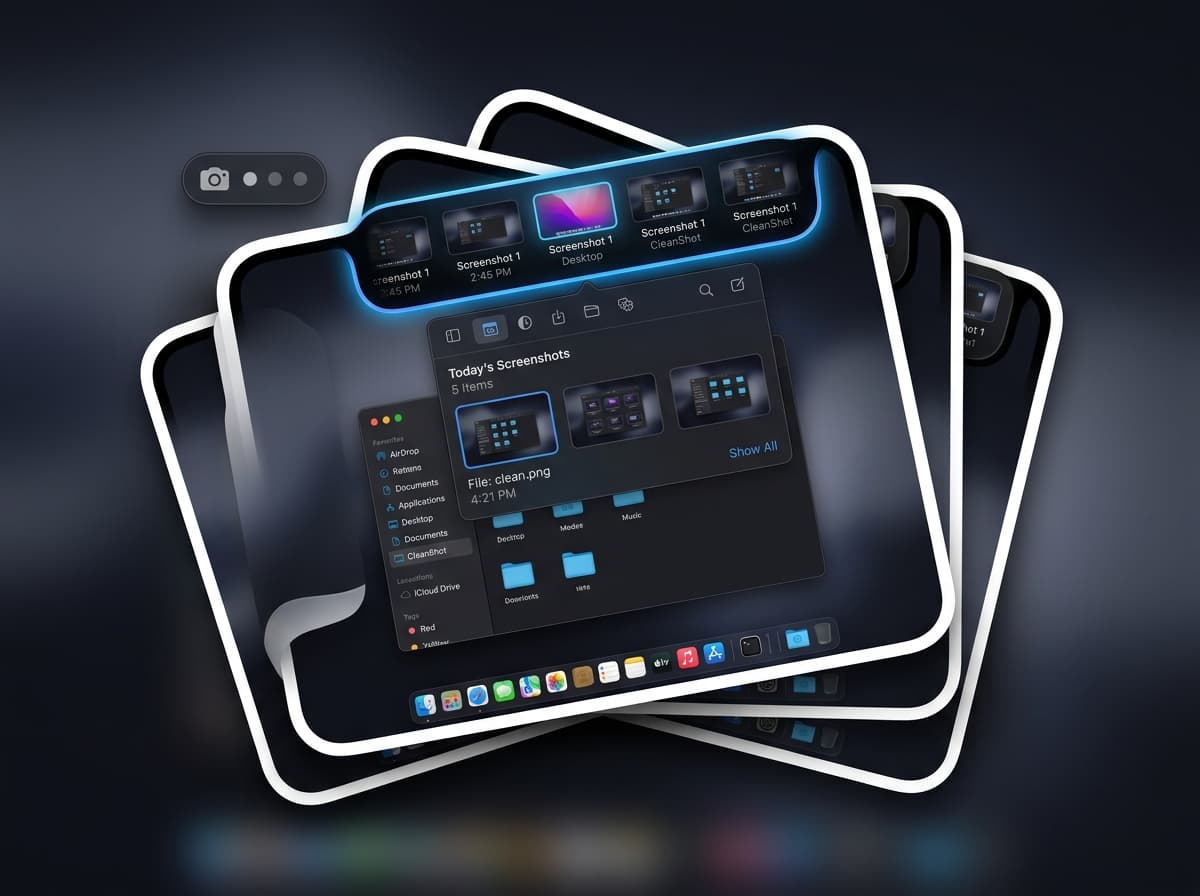
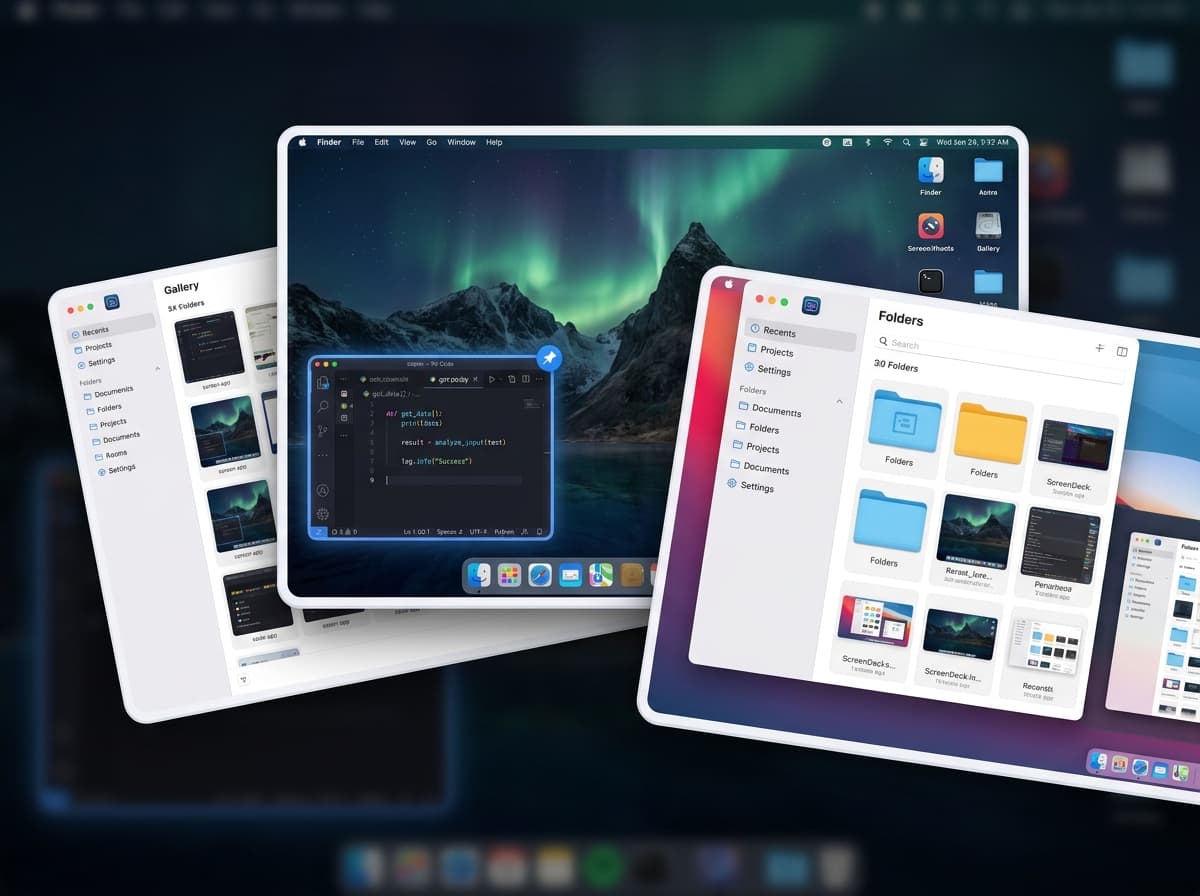
Everything you capture lands in a temporary notch tray — then copy, save, annotate, OCR, pin to desktop, or delete. Zero file clutter. Total creative flow.
Lives in the notch
WispShot attaches directly to your MacBook's physical notch — collapsed it shows an active count and thumbnail. Hover to expand. Auto-collapses the moment you move away.
4 capture modes
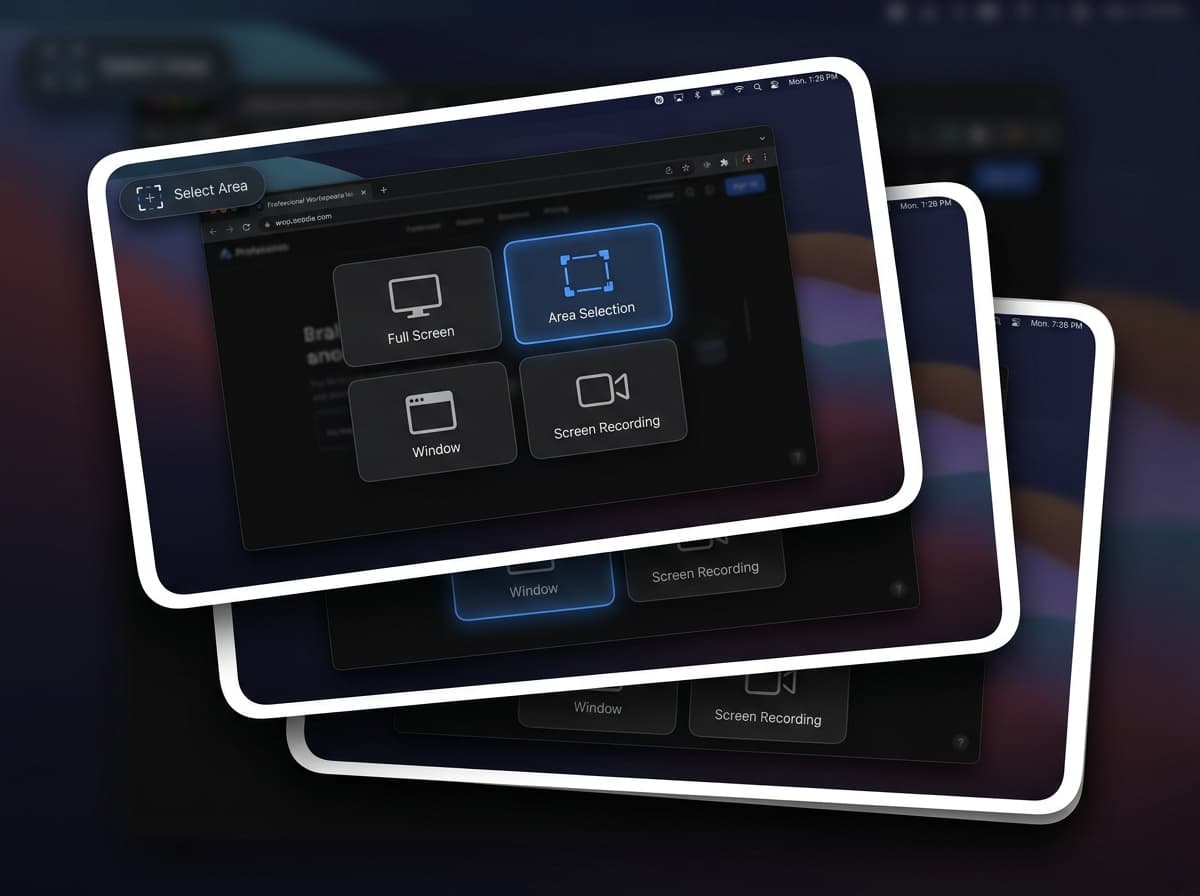
Dedicated global hotkeys with pixel-level magnifier loupe guidance.
Everything in the tray
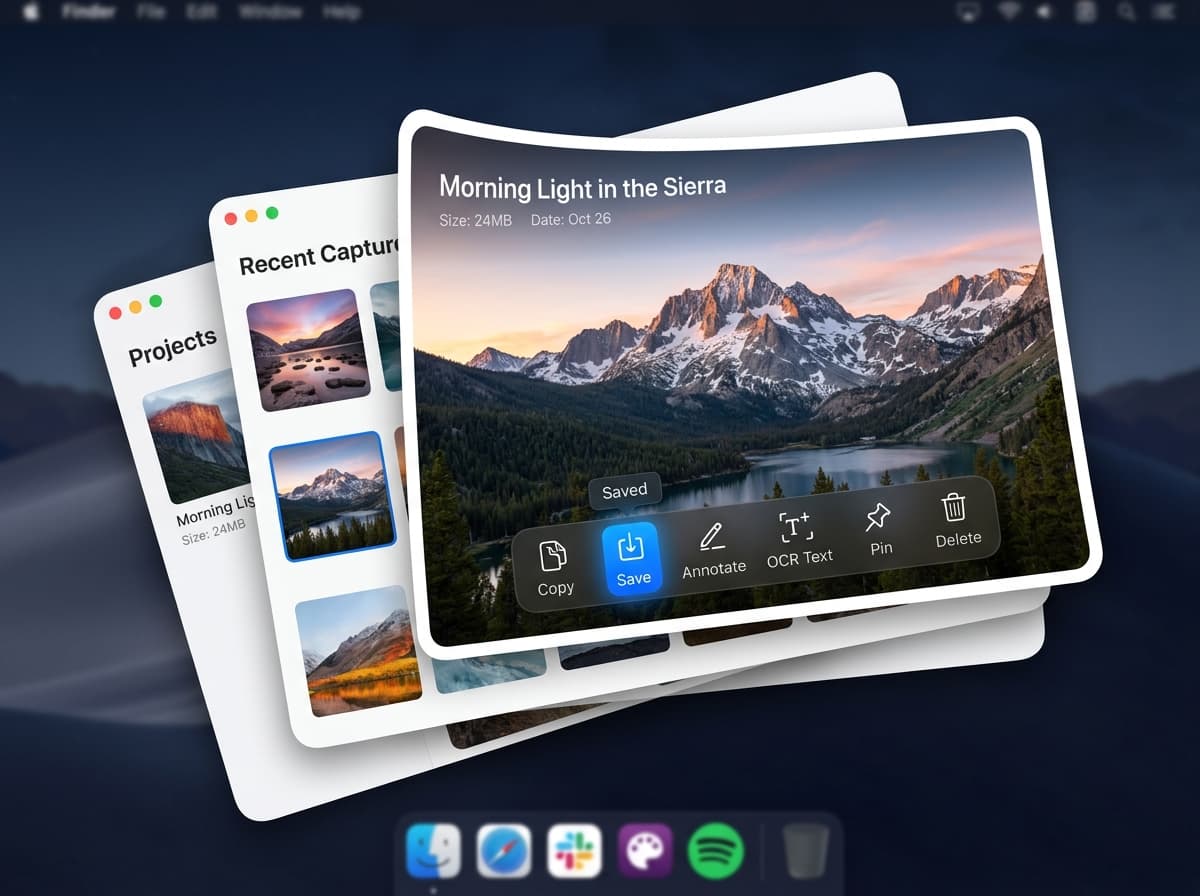
Every action is one click away in the notch. Extract text, draw callouts, or pin for reference without touching your disk.
Staging queue
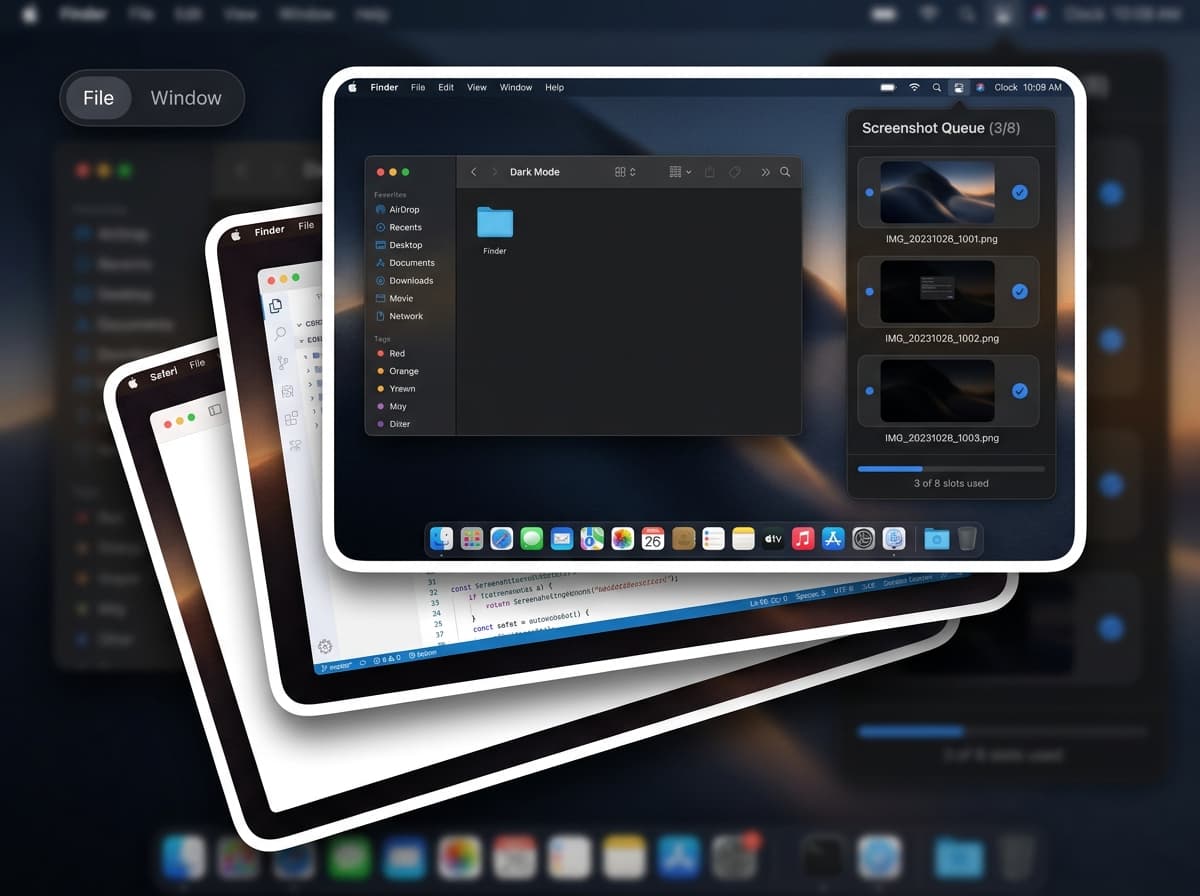
Holds up to 8 captures in temporary memory. Discard anytime without file trash clutter.
Pin to Desktop
Float any screenshot as a persistent window anywhere on your screen. Keep reference mockups visible while you code.
Fully customizable
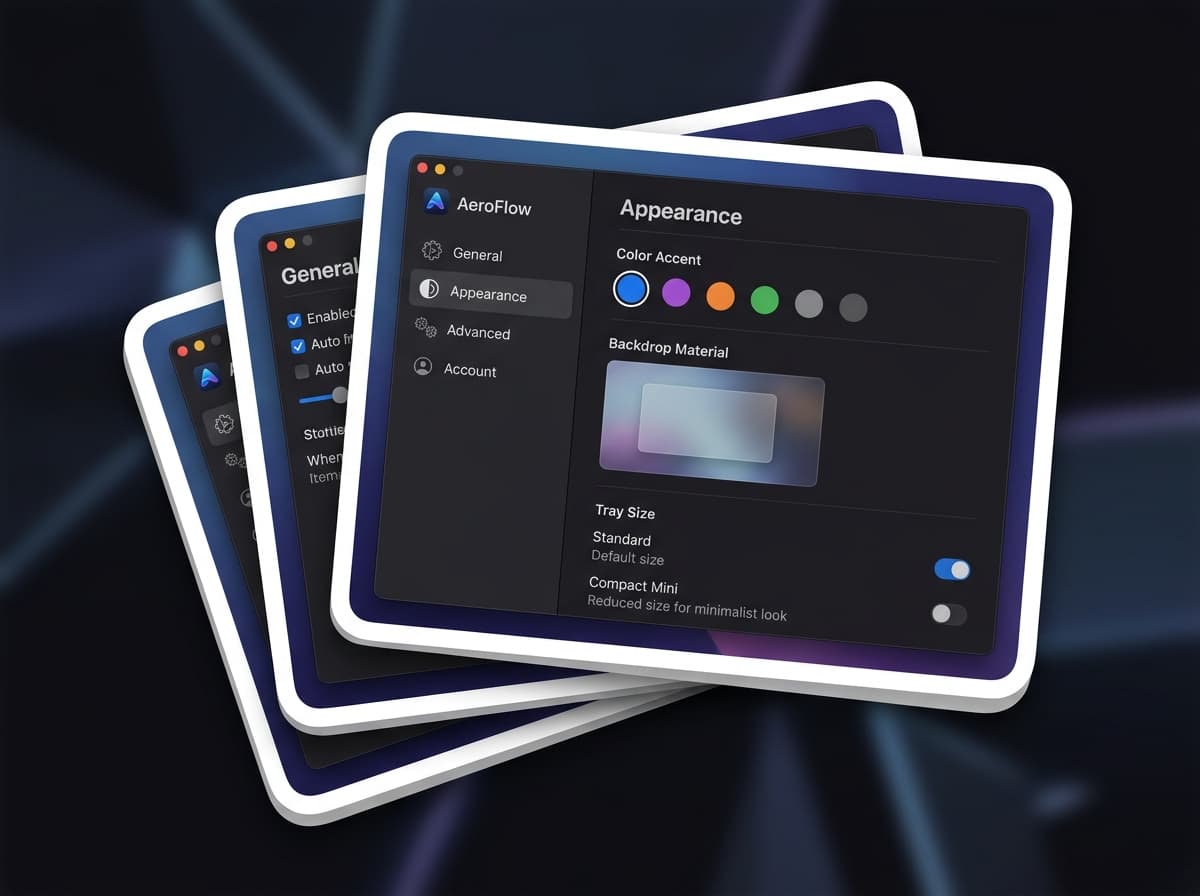
Apple Liquid Glass backdrop, accent color themes, Standard or Compact Mini tray, and remappable hotkey presets.
Three steps, zero friction
No files scattered on your desktop. No manual cleanups. Capture what you need and get straight back to work.
Trigger a capture
Press a hotkey for Full Screen, Area Selection with magnifier loupe, Window, or Screen Recording. Catches instantly.
It stages in the notch
Your capture floats right into the physical MacBook notch queue. Nothing is saved to disk. Hover anytime to expand.
Act on it your way
Copy, save, annotate, extract text with OCR, pin to desktop, or delete — all without leaving what you were doing.
“My desktop used to be a graveyard of screenshots. WispShot changed that completely — everything stays in the notch until I decide where it goes.”
One price. Yours forever.
No subscriptions. No renewals. Pay once, get a lifetime license.
- ✦Full Screen, Area Selection, Window & Screen Recording
- ✦Annotate & Markup
- ✦Recognize Text (OCR)
- ✦Pin to Desktop — float captures anywhere on screen
- ✦Quick Look / Preview
- ✦Staging queue — nothing saved until you choose
- ✦Customizable hotkeys (3 preset schemes + custom)
- ✦Apple Liquid Glass tray with accent color themes
- ✦Multi-device license management
- ✦All future updates included
Questions answered
Is there a free version?+
No. WispShot is a paid app — $19 one-time for a lifetime license. There is no free tier or trial.
Does it have OCR?+
Yes. Enable "Recognize Text" in Appearance → Visible Action Buttons and an OCR button appears in the notch tray for every capture.
Can I annotate screenshots?+
Yes. Enable "Annotate & Markup" in Appearance → Visible Action Buttons to add annotations directly from the notch tray.
What is Pin to Desktop?+
Pin any screenshot as a floating window on your screen. Choose from 4 corners, set a custom size and edge padding, and it stays visible while you work.
Can I customize hotkeys?+
Yes. Choose from 3 preset schemes (Control+Option, Command+Shift, Command+Control) or go fully custom — each capture mode has its own remappable shortcut.
Is anything permanently saved without my knowledge?+
No. Nothing is saved to disk unless you explicitly choose Save. Captures are held in the staging queue temporarily (up to 8 items, 5 GB limit) until you decide.
Does Wispshot upload my captures anywhere?+
No. WispShot is local-first. Your screenshots and recordings never leave your Mac. An account is required only for license management.
What is the lifetime license?+
Pay once and use WispShot forever — all future features are included at no extra cost. No monthly or annual subscription.
Can I use it on more than one Mac?+
Yes. Your license can be activated on a defined number of Macs. Manage active devices from your account dashboard.
Does it work offline?+
Yes. After your license is initially verified, WispShot works fully offline for all capture tasks. It may reconnect periodically to verify your license.